
 It Works Locally
Stop Clicking Your Mac Trackpad — Enable Three-Finger Drag
If you use a Mac for development, there is a good chance you are clicking and pressing down on your trackpad dozens of times a minute — moving windows, selecting code, dragging files between folders. It feels normal because it is what everyone does by default, but it puts a surprising amount of strain on your hand over a long session.
There is a better way, and it has been sitting in your Accessibility settings the whole time.
Prefer to watch? Skip to the video
What is Three-Finger Drag?
Three-Finger Drag replaces the physical click-and-hold gesture with something much lighter. Instead of pressing down on the trackpad to initiate a drag, you rest three fingers gently on the surface and move. No clicking, no pressure — just a relaxed glide in whatever direction you need.
It is faster, and the precision is better too, because you are not fighting the physical resistance of the click while trying to drag accurately.
Apple does not put this in the standard Trackpad settings. It lives under Accessibility, which is probably why most people never find it.
How to enable it
- Open System Settings
- Go to Accessibility
- Select Pointer Control
- Click Trackpad Options...
- Toggle on Use trackpad for dragging
- Under Dragging style, select Three-Finger Drag
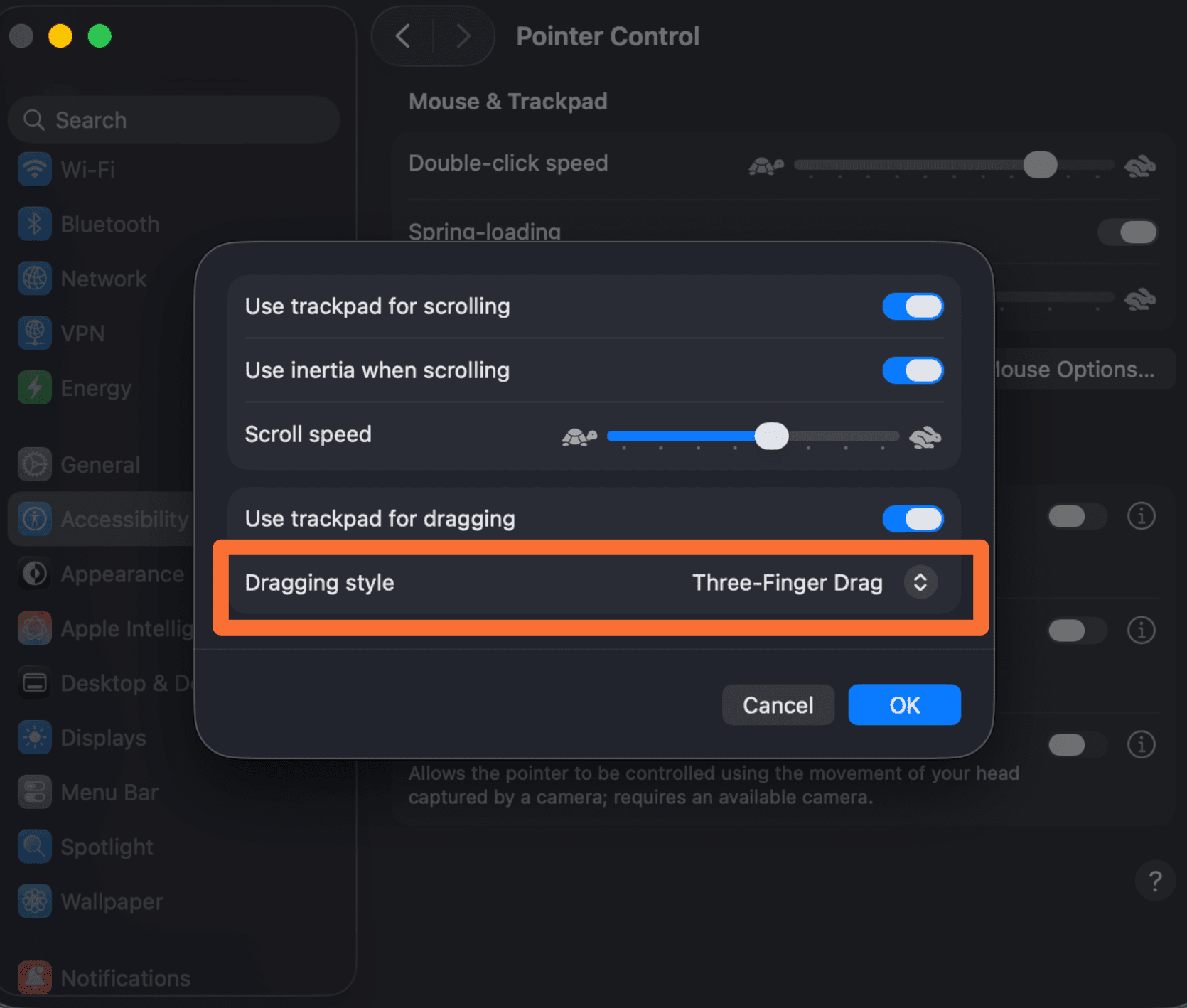
With that set, dragging anything around the screen takes almost no effort.
Watch the video
If you would prefer to follow along visually, here's the full walkthrough: